How to Prepare Multilingual PDF Attachments for Client Emails
By SendBridge Team · Published Oct 22, 2026 · 6 min read · General
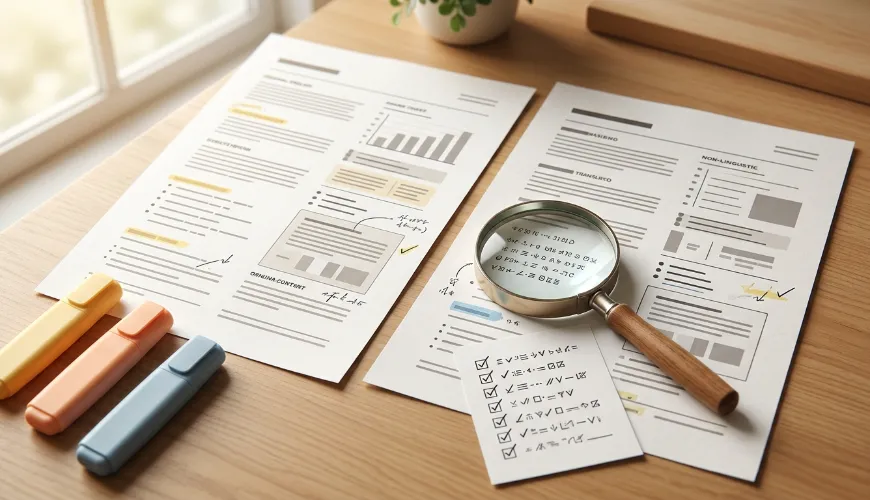
A client email may carry more than a message. It might include a product guide, a proposal, a service agreement or instructions for getting started. When the recipient works in another language, sending the original PDF can leave important details unclear-even if the email itself has been translated.
An AI PDF translator can help create a first translated version without requiring teams to rebuild the document from scratch. PDFTranslator.org supports more than 100 languages, accepts PDFs up to 20 MB and aims to preserve the source layout. That can make it easier to keep headings, tables and illustrations connected to the relevant text.
The translated file still needs human review before it goes to a client. Numbers, deadlines, product names and contractual language can carry consequences if they are translated incorrectly. A sensible process treats the tool as a way to prepare a draft, then checks the content and presentation before attaching it to an email.
Start with the right version of the document
Before translating, confirm that the PDF is the version you intend to send. Check its date, revision number, product model and recipient. A translated outdated price sheet or an old onboarding guide can create confusion even when the language is flawless.
Also check whether the PDF contains selectable text or consists of scanned page images. Text-based PDFs can be processed from their embedded text, but complex layouts, unusual fonts, tables and text embedded in images may still affect the result. Scanned PDFs require OCR, so recognition can be less reliable when pages are blurry, skewed or low contrast. Review the output against the original, especially names, numbers and other details that must be exact.
Give the source and translated files clear, matching names. For example, Service-Guide_EN_Rev2.pdf and Service-Guide_FR_Rev2.pdf make the language and revision visible at a glance. Keep the original alongside the translated copy so the recipient-facing version can be checked against the source.
Also consider what the PDF contains. Internal pricing notes, personal information, customer details or material that has not been approved for external sharing should be reviewed before using any online tool. Follow your organisation's data-handling policy and use only documents approved for the workflow.

Set language choices deliberately
Select the source language and the target language yourself. Do not assume the service will identify the source language automatically. If a document combines languages-for example, English instructions with product labels in another language-note that during review because mixed-language passages may need extra attention.
The target language should match the recipient's needs, including regional usage where relevant. A customer in Brazil may expect Brazilian Portuguese; a customer in Portugal may expect European Portuguese. When the distinction matters, confirm the preferred variant with the client or the colleague managing the account.
For recurring customer documents, maintain a short glossary of approved terms. Product names, feature labels, support-plan names and legal entity names often need consistent treatment across proposals and follow-up materials. A glossary gives the reviewer a reference point and helps prevent small variations between documents.
Translate, then review the client-facing details
To translate a PDF online, upload the approved file, choose the source and target languages, select a suitable translation style, and process it. The service runs in a browser and does not require account registration for the translation workflow. Once the result is ready, download or preview it and compare it with the original.
Begin the review with details that could affect a client's next action:
- Prices, quantities, dates and payment terms
- Delivery estimates, deadlines and renewal periods
- Product names, model numbers and support-plan labels
- Instructions for setup, access or account activation
- Contact details, URLs and email addresses
- Conditions, exclusions and required actions
A changed decimal point or date format can alter meaning. So can a translated instruction that turns a recommendation into a requirement. If a PDF includes terms that affect legal obligations, payments or safety, have an appropriately qualified person review them rather than relying on automated output alone.
Check the layout at normal reading size
Layout preservation can help readers follow a document, but it does not guarantee that every page will look perfect. A translated sentence may take more or less space than the original. That can cause text to wrap differently, collide with a nearby image or become cramped inside a table.
Review the PDF page by page. Check that headings still belong to the right sections, captions remain beside their figures, table columns are readable, and no text is clipped. Pay particular attention to forms, pricing tables, footnotes and pages with several callouts. If text appears inside a screenshot or image, verify whether it needs separate treatment; translating the surrounding PDF text may not translate words embedded in the image.
Then open the file on a device similar to the one the client is likely to use. A page that looks acceptable on a large monitor may be difficult to read on a phone. If the client needs to fill out a form or follow linked instructions, test those elements as well.
Make the email and attachment agree
The message accompanying the PDF should clearly identify what is attached and what the recipient should do next. If the email says "Please review the revised service guide," make sure the attachment is the correct language and revision. Use a descriptive filename, and avoid sending several files called "final" without clarifying which one is current.
For important documents, consider asking a colleague who knows the subject to review the final copy. A second reader may catch an inconsistent term or a missing page that the person who prepared the file has overlooked. Keep a record of the source version, target language and review status when the document is part of an ongoing customer relationship.
Frequently Asked Questions
Does PDFTranslator.org automatically detect the source language?
Choose the source language during setup rather than assuming automatic detection. Confirm the language of the document before processing, especially if it contains mixed-language sections.
Does preserved layout mean the translation is accurate?
No. Layout preservation can make the document easier to compare with its source, but terminology, figures and meaning still require review.
What should be checked before emailing a translated PDF?
Verify the correct version, key figures, dates, names, instructions, links and page order. Then check readability on the recipient's likely device.
Can every client document be uploaded?
That depends on the organisation's data-handling rules and the document's sensitivity. Confirm that the file is approved for the service before uploading it.
A translated attachment is part of the client experience, not a separate administrative detail. Choosing the right source file, setting the languages deliberately and reviewing the result helps a team send material that is easier to understand-and less likely to prompt avoidable follow-up questions.