Preventive Maintenance Checklist for Remote Fleets: Boost Efficiency & Minimize Downtime
By SendBridge Team · Published Feb 17, 2026 · 9 min read · General
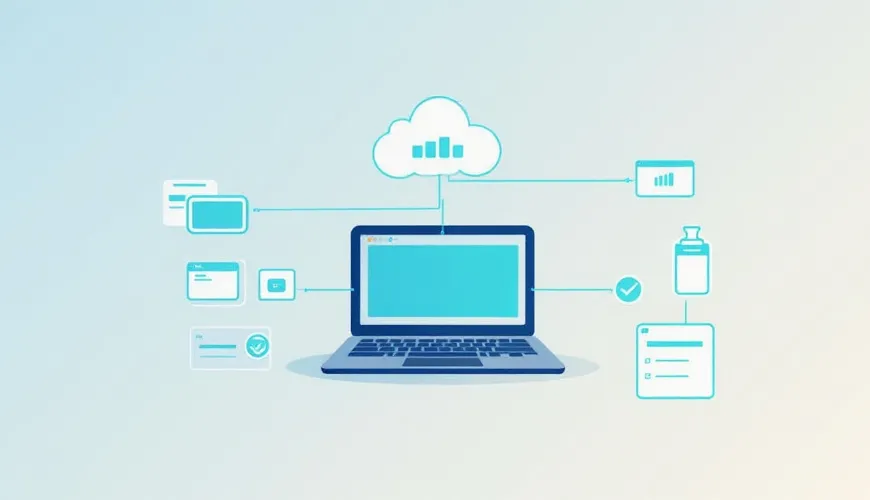
Preventive maintenance is critical for the smooth operation of remote IT fleets. Without regular maintenance, devices can experience performance issues, security vulnerabilities, and even complete failures. This would lead to unnecessary downtime and costly repairs.
IT teams face unique challenges when managing remote fleets. Unlike on-site devices, remote users are not always easily accessible, making it difficult to monitor and address issues in real-time. Additionally, varying work environments and user habits can lead to inconsistent device care, resulting in hardware malfunctions or security lapses.
This article aims to provide IT teams with a practical checklist for enforcing essential maintenance tasks. By following these guidelines, teams can reduce downtime, enhance device performance, and avoid expensive repairs, all while keeping remote fleets running smoothly.
Patch + OS Maintenance Schedule Tied to Risk
Regular patches and OS updates are essential for maintaining device security and ensuring system stability. They protect against known vulnerabilities, fix bugs, and improve system performance. Failing to update operating systems and software can leave devices exposed to cyberattacks, data breaches, and malware.
In a remote fleet, where devices are more dispersed and often operate outside a secure office network, this risk is even more significant. Patches are typically released to address newly discovered vulnerabilities, and without them, your devices remain susceptible to exploitation, which can lead to data loss and financial damage.
Risk-Based Scheduling
Not all devices carry the same level of risk. For example, devices used by employees in high-security environments or those handling sensitive data may require more frequent and immediate updates than standard office devices. Risk-based scheduling helps prioritize patching based on the device’s role and the potential impact of a security breach.
For high-risk environments, such as those with access to sensitive data or critical infrastructure, security patches should be scheduled and applied immediately upon release. For less critical devices, updates can be scheduled at regular intervals but may not need to be as urgent. This approach ensures that critical devices are protected without overwhelming IT teams with unnecessary patching tasks.
Automation for Consistency
Automating patch management is crucial for ensuring that all remote devices remain updated without requiring constant manual intervention. Endpoint management software can schedule and deploy patches across the fleet, ensuring that devices receive the latest updates promptly. By automating the process, IT teams can:
- Ensure Consistency: Patches are applied uniformly across all devices, preventing discrepancies and potential vulnerabilities caused by missed updates.
- Save Time: Automation reduces the need for manual tracking and deployment, freeing up IT teams to focus on other critical tasks.
- Maintain Compliance: Automated systems can be configured to ensure updates are applied according to organizational or regulatory compliance standards, reducing the risk of falling behind on necessary security measures.

Battery Health and Storage Practices for Remote Users
Ensuring the longevity and performance of batteries in remote devices is crucial for maintaining productivity and avoiding downtime. Remote users often rely on their devices for extended periods without access to charging stations, making battery health even more important. Best practices for battery health monitoring include:
- Avoid Overcharging and Deep Discharge: Encourage users to unplug devices once they reach a full charge (ideally 80%-90%) and avoid letting the battery drop to 0% regularly. Both overcharging and deep discharges can reduce battery lifespan.
- Regular Charging Cycles: Users should aim to charge their devices in shorter intervals rather than allowing the battery to drain completely. This helps maintain battery health over time.
- Temperature Control: Remote users should store and use their devices in temperature-controlled environments. High heat can accelerate battery degradation.
- Battery Calibration: Advise users to calibrate their device batteries every few months. This involves letting the battery drain completely before charging it back to 100%, which can help recalibrate the battery's power management system.
Remote User Storage Practices
Proper device storage management is equally important for remote users, as poor storage practices can lead to slowdowns, crashes, and even data loss. Devices with limited storage space can experience performance issues, including longer load times and system freezes.
Guidelines for remote device management include:
- Regularly Clear Unnecessary Files: Encourage users to regularly delete or offload files they no longer need, such as old documents, photos, and software they don’t use. This prevents storage from filling up and allows the system to run more smoothly.
- Use Cloud Storage for Large Files: Remote users should be instructed to store large files on cloud services, rather than keeping them on their local devices. This reduces the strain on local storage and ensures important files are backed up securely.
- Organize Files and Folders: Users should keep their files well-organized in appropriate folders. This not only makes it easier to access important documents but can also improve device performance by reducing the number of unnecessary files and fragments on the hard drive.
- Monitor Storage Usage: Advise users to monitor storage usage regularly to avoid running out of space, which can affect device performance.
IT Enforcing Best Practices
IT departments can play a significant role in ensuring that remote users follow preventive maintenance best practices for battery and storage health. Here are tools and policies that IT can implement to help enforce these practices:
- Monitoring Software: Use device management software to monitor battery health, storage usage, and other critical system metrics. Automated alerts can notify IT if a user’s device is experiencing battery or storage issues, allowing for proactive maintenance.
- Centralized Reporting: IT can set up systems that allow remote users to report battery health or storage problems. This ensures that issues are tracked and addressed promptly, avoiding prolonged performance degradation.
- User Guidelines and Training: Provide remote users with clear guidelines and training on proper battery care and storage management. This can include easy-to-follow steps and reminders that encourage users to adopt good habits.
- Enforce Device Restrictions: Implement policies that limit users from filling up their device storage beyond a certain threshold or from using unsupported applications that could negatively impact performance.
Hardware Health Signals (SMART, Thermal Throttling) + Actions
SMART (Self-Monitoring, Analysis, and Reporting Technology) is a built-in feature in most modern hard drives and SSDs that continuously monitors the health of the device. It tracks various metrics such as temperature, read/write errors, and performance degradation. By analyzing this data, SMART can predict potential hardware failures before they happen, giving IT teams a chance to address issues proactively.
Key SMART attributes include:
- Reallocated Sectors Count: A rise in this count can indicate imminent failure.
- Spin-Up Time: Slower spin-up times might signal mechanical issues in hard drives.
- Temperature: Overheating can significantly impact the longevity and reliability of the device.
Thermal Throttling and Performance Issues
Thermal throttling occurs when a device’s CPU or GPU overheats and automatically reduces its performance to cool down. This is a protective mechanism designed to prevent hardware damage, but it can lead to noticeable slowdowns and reduced productivity.
Signs of thermal throttling include:
- Sluggish Performance: The device becomes slow or unresponsive, particularly during heavy workloads or gaming.
- Fan Noise: Increased fan activity as the system tries to cool down.
- High System Temperatures: Temperatures reaching critical levels (e.g., above 80°C for most laptops) can trigger thermal throttling.
When thermal throttling is detected, it’s important for IT teams to investigate the underlying cause, whether it’s inadequate cooling, dust buildup, or high environmental temperatures, and take corrective action.
Actions IT Can Take
To prevent hardware failures and ensure devices remain in good health, IT teams can take several proactive measures:
Monitor SMART Data Regularly:
Use monitoring tools (e.g., CrystalDiskInfo, HWMonitor) to track SMART attributes and set up alerts for critical thresholds. Regular reviews of this data can help identify potential hardware failures early.
Address Overheating Issues:
- Improve Ventilation: Ensure that devices are used in well-ventilated environments, and that cooling systems (like fans or heatsinks) are functioning properly.
- Use Cooling Pads or Stands: For laptops, recommend using cooling pads or stands to improve airflow.
- Clean the Devices: Periodically clean dust from vents and cooling fans to prevent overheating.
Set Up Alerts for Thermal Throttling:
Implement software that provides real-time alerts when temperatures reach critical levels. Tools like HWMonitor or Core Temp can monitor CPU/GPU temperatures and send alerts to IT if overheating occurs.
Run Diagnostics:
Periodically run diagnostic checks on hardware to ensure optimal performance. Use Laptop’s built-in diagnostic tools or third-party software to test key components like hard drives, memory, and cooling systems.
Replace Aging Components:
Based on SMART data and performance reports, schedule proactive replacement of aging drives or other components that show signs of wear and tear, even before failures occur.
Standard Support Scripts That Reduce Escalations
Support scripts standardize troubleshooting, ensuring quicker issue resolution and fewer escalations. They guide IT teams through common issues step-by-step, reducing errors, speeding up responses, and improving consistency. With a structured approach, problems are resolved faster, and unnecessary escalations to higher-level support are minimized.
Creating Effective Support Scripts
Effective support scripts should be clear, concise, and tailored to address the most common issues that remote fleet devices face. Here are the key components to include in support scripts for managing remote fleets:
- Common Issues: Address frequent problems like connectivity, software crashes, or hardware failures.
- Diagnostic Steps: Provide clear instructions for troubleshooting, from basic checks to advanced diagnostics.
- Preventative Measures: Include advice on avoiding future issues, such as software updates or battery care.
- Escalation Process: Define clear steps for escalating unresolved issues to specialized support.
Conclusion
Implementing a proactive preventive maintenance strategy is key to maintaining the health of remote IT fleets. By focusing on areas like hardware monitoring, risk-based patching, and efficient device management, IT teams can ensure smoother operations and longer device lifespans.
Using automation and support scripts further enhances efficiency, allowing IT departments to respond quickly and consistently. These steps reduce the risk of downtime, enhance productivity, and ultimately save costs, ensuring remote fleets remain optimized and ready for daily operations. Adopting automated fleet management solutions provides the necessary oversight to scale these maintenance efforts across larger vehicle groups without increasing the workload for your existing support staff.