How to Use Video in Email Campaigns Without Hurting Deliverability
By SendBridge Team · Published Nov 09, 2026 · 7 min read · Email Deliverability
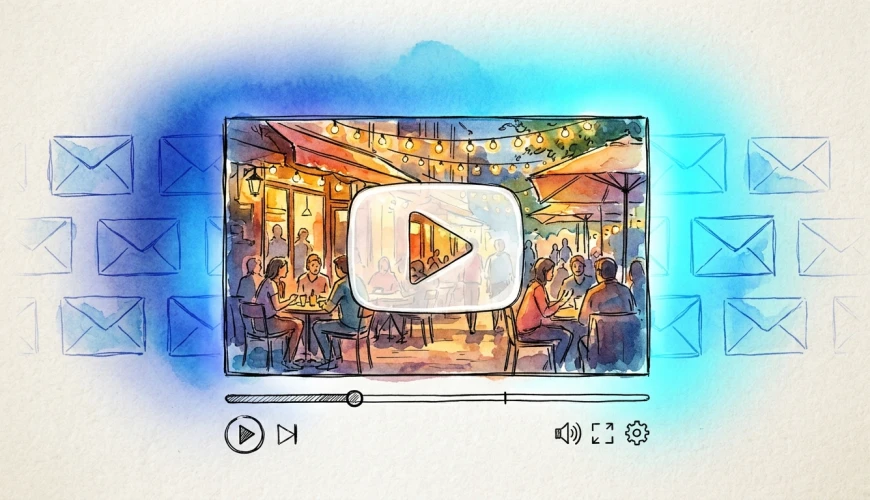
A product team records a two-minute demo, drops it into the launch email, and sends a test to the marketing lead's iPhone. It plays perfectly. Then the campaign goes out. Gmail subscribers see a strange empty block, Outlook users get a player that refuses to start, and a handful of people who were sent the MP4 as an attachment never receive the email at all.
Video can lift engagement in email, but only when it's treated as a doorway to the content rather than something the inbox has to carry. Get the format wrong and you pay for it in broken layouts, clipped messages and a weaker sender reputation. Here's how to add video to a campaign without giving mailbox providers a reason to filter you.
Why embedded video rarely plays in the inbox
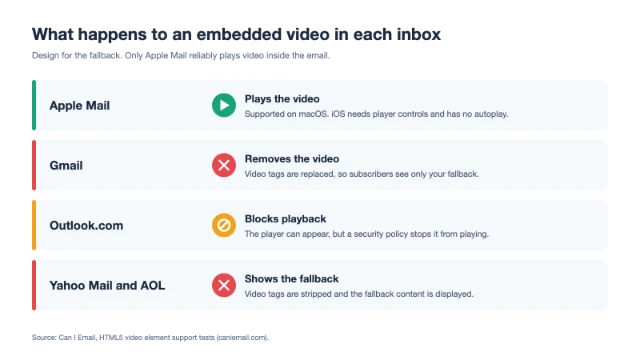
HTML5 video in email has been possible for years, but support is thin. According to Can I Email's testing of the video element, Gmail replaces video tags with harmless underline tags, Yahoo Mail and AOL strip them and show fallback content, and Outlook.com accepts the element but blocks playback through its security policy. Apple Mail is the main client where an embedded video actually plays.
On most lists, Gmail and Outlook users make up a large share of subscribers, so an embedded player is a feature that works for a minority and breaks for everyone else. Design for the fallback first. If you do use a video tag for Apple Mail users, make sure the fallback image and link look complete on their own.
Never attach the video file
Attaching an MP4 feels like the simplest option, and it's the riskiest. Gmail caps attachments at 25 MB and many corporate servers set lower limits, so a large file can bounce outright. Even when the email gets through, a bulky attachment from a marketing sender is the kind of pattern spam filters treat with suspicion, and security-conscious recipients are trained not to open it.
Host the video somewhere you control and link to it. That keeps the email light and puts the viewing experience on a page you can track.
Use a clickable thumbnail that links to a landing page
The approach that works in almost every client is a static image that looks like a video player, linked to a page where the video plays.
- Use a real frame from the video with a clear play button on top, so the click feels like a natural next step.
- Write useful alt text, such as "Play the 90-second product demo", because some subscribers will see the email with images turned off.
- Add a text link or button below the image that says what happens next, for example "Watch the demo".
- Link to your own domain where possible. A landing page on your website keeps the link domain consistent with your sending domain and lets you add context and a call to action next to the video.
- Compress the image. Display it at 600 pixels wide, export it at twice that size for sharp screens, and keep the file small so the email loads quickly on mobile data.

Keep animated GIFs short and light
A short animated preview, three to five seconds taken from the video, can make the thumbnail more inviting. Keep it brief and compressed, because a heavy GIF slows the email down for everyone. Some older versions of Outlook for Windows show only the first frame of an animated GIF, so make sure that first frame works on its own, with the play button already visible.
Watch the HTML weight and the text-to-image balance
Gmail clips messages whose HTML goes past roughly 102 KB and hides the rest behind a "View entire message" link. That hidden section often includes your unsubscribe link and the open-tracking pixel, which is bad for both compliance and reporting. Video emails are especially prone to this because teams tend to pile on extra image blocks, buttons and styling around the player.
Resist the urge to send an email that's one big thumbnail. An image-only message gives filters very little to judge and gives readers no reason to click. Two or three sentences explaining what the video shows and why it's worth a minute of their time will do more for both deliverability and click-through.
Make the video short and built for the click
The person who clicks through from an email has already shown interest, but their patience is limited. A 30 to 60 second cut that delivers one clear message usually works better than the full webinar recording. Add captions, because many people land on the page on their phone with the sound off, and put your main point in the first few seconds.
Producing those shorter versions is often what holds teams back. If your team already drafts campaigns with an AI assistant, invideo MCP lets that same assistant edit video on a real timeline. You can ask Claude or ChatGPT to cut a three-minute product demo down to 45 seconds, add word-by-word captions and build a vertical 9:16 version for social posts, then review the timeline in your browser before exporting. It's a practical way to turn one recording into the landing page cut, the social clip and the thumbnail frame for your email.
Clean the list and test before you send
Video launches often go to bigger segments than a regular newsletter, including subscribers who haven't engaged in months. That's exactly where invalid addresses and spam traps hide, and a spike in bounces during a high-profile send can hurt your reputation for weeks afterwards. Before a large campaign, clean your email list so the send only goes to addresses that can receive it.
Then test the finished email. Send it to seed accounts in Gmail, Outlook and Apple Mail, check that the thumbnail and fallback text look right with images both on and off, and run it through a mail tester to catch authentication issues, broken links or spam signals before your subscribers do.
Measure clicks and plays, not opens
Since Apple introduced Mail Privacy Protection, open rates have become an unreliable signal, because many opens are recorded automatically. For a video email, the numbers that matter are the click-through rate on the thumbnail, the play rate on the landing page and what viewers do after watching. If you can, send a version without video to a small control group so you know whether the video actually moved the result.
Questions people also ask about video in email
Can you embed a YouTube video in an email?
Not as a working player. Email clients don't run the scripts and iframes a YouTube embed needs. Use a thumbnail with a play button that links to the video on YouTube or, better, to a page on your own site.
Does the word "video" in a subject line trigger spam filters?
Not on its own. Modern filters weigh sender reputation, authentication and how recipients engage with your mail far more than individual words. Use it when it accurately describes the email.
What size should a video thumbnail be?
Design it to display at around 600 pixels wide and export it at 1,200 pixels so it stays sharp on high-resolution screens. Compress it well so the email still loads quickly on a slow connection.
Video in email works best when the inbox does the inviting and your landing page does the playing. Keep the email light, send it to a clean list, test it across clients and measure what happens after the click. Done that way, video adds interest to a campaign without putting your deliverability at risk.