How to Create a QR Code for an Email Address
By SendBridge Team · Published Jul 08, 2026 · 9 min read · Technology
Key Takeaways:
-
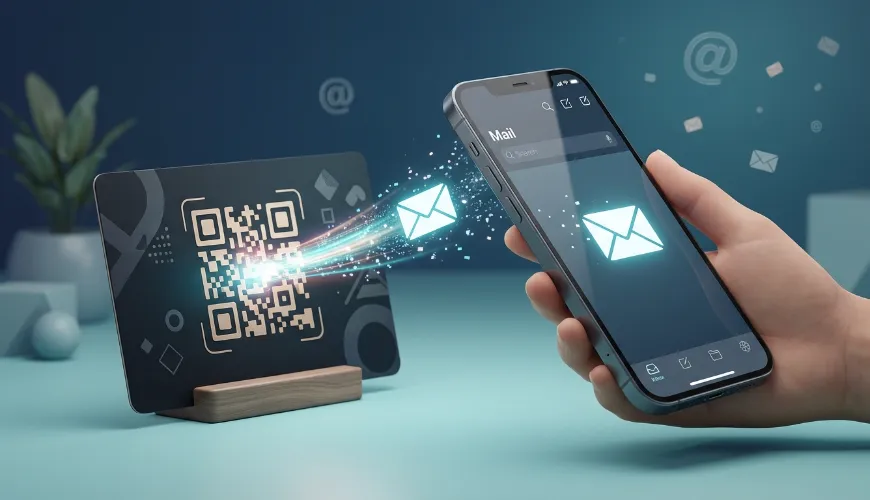
A QR code for an email address opens the recipient's mail app with your address, and often a subject line, already filled in.
-
Most people abandon manual typing on mobile, so a scannable code removes friction from any offline touchpoint.
-
You can create one with almost any QR code generator, but design, print size, and error correction decide whether it actually scans.
-
An email QR code is usually static, so it will not track scans, unlike a dynamic QR code that links to a webpage.
-
Getting the format right the first time saves a reprint later, since static codes cannot be edited once they are out in the world.
A 2025 analysis of website registration forms found that 22 percent of email addresses entered online are incorrect or invalid, and 15 percent contain typos alone, according to research from Emailchef and TurboSMTP. That single detail explains why so many businesses lose a contact before a single email is ever sent.
To create a QR code for an email address, you encode a mailto link into the code using a QR code generator, download the image, and place it wherever people need to reach you. The scan opens the recipient's default mail app with your address already entered, so there is no typing left for anyone to get wrong.
This guide covers what an email QR code actually does, when it makes sense to use one, how to build it step by step, and the small mistakes that cause codes to fail at the worst possible moment.
A. What Does an Email QR Code Actually Do?
An email QR code stores a "mailto:" command instead of a plain web link. When someone scans it, their phone opens the default mail app with the recipient field already filled in.
Depending on how the code was built, it can also pre-fill a subject line and a short message. The person scanning still has to hit send, so nothing goes out without their action.
This makes it different from most other QR code types. A restaurant menu code or a payment code usually redirects to a webpage. An email code skips the browser entirely and opens a native app instead, which is part of why it feels instant to the person scanning it.
Two details decide how well it works in practice:
-
The encoded email address must be correct. A single typo sends every scan to the wrong inbox, or to no inbox at all.
-
The subject and body fields are optional but useful. A pre-filled subject like "Quote Request" gives you context the moment the email lands.
B. Why Do Businesses Use QR Codes for Email Addresses?
People rarely retype a long email address correctly on a phone keyboard. Autocorrect changes a dot to a comma, or a finger slips on a small screen, and the message bounces or never gets typed at all.
A QR code removes that entire step. The scan does the typing, so the only human error left is whether someone chooses to send the email.
Common places this shows up:
-
Business cards and lanyards, where a code next to your name saves the recipient from squinting at small print.
-
Print ads and brochures, where a "Scan to email us" line converts better than a long address nobody wants to type.
-
Product packaging, where customer support needs a fast, low-friction contact route.
-
Event signage and booths, where attendees want to reach out later without fumbling for a pen.
Pro Tip: Pair the email QR code with a short, benefit-led line of text near it, such as "Scan to get a quote," rather than the generic "Scan me." Context increases the chance that someone actually follows through.
C. How Do You Create a QR Code for an Email Address?
Here is the example flow using Scanova, a QR code generator with a dedicated email QR type and a built-in design studio. You can start directly from Scanova's email QR code tool, which skips category selection and takes you straight to the email fields.
-
Open Scanova's email QR code tool and sign in, or create a free account if you are new to the platform.
-
Enter the recipient's email address in the field provided. Double-check the spelling before moving forward, since this field cannot be corrected after the code is generated.
-
Add an optional subject line, such as "Website Enquiry," so replies are easy to sort later.
-
Add an optional message in the body field if you want a short note to appear automatically. Keep it brief, since most people will edit or delete it anyway.
-
Click Generate to create the QR code.
-
Open the Design Studio to customize the look. Adjust the corner (eye) shapes, change the dot pattern, add a background color, and embed your logo in the center.
-
Set the error correction level if the code will sit near a logo or on a textured surface, so it stays scannable even if part of it is obscured.
-
Download the QR code image in a size suitable for your use case, whether that is a business card, a poster, or a product label.
-
Test the code with two or three different phones before printing or publishing it anywhere.
That last step matters more than it seems. A code that looks fine on screen can still fail if the contrast is too low or the image gets compressed during upload.
D. Static or Dynamic: Which Type of Email QR Code Should You Choose?
This is where a lot of QR code guides skip an important detail. An email QR code is typically a static code, meaning the mailto information is written directly into the pattern of the code itself.
That has one direct consequence. You cannot edit a static code after it is printed, and you cannot track how many times it was scanned. If your email address changes, the old code stops being useful and needs to be replaced.
Compare that to a dynamic QR code, which points to a short redirect link you can update at any time, and which can log scan data like time and approximate location. Industry data referenced by Wave Connect's 2026 QR code statistics report puts dynamic QR adoption among businesses at roughly 79 percent, largely for this kind of flexibility.
| Factor | Static Email QR Code | Dynamic QR Code (e.g., contact page) |
|---|---|---|
| Editable after printing | No | Yes |
| Scan tracking | No | Yes, including time and device |
| Best for | A fixed email address that rarely changes | Campaigns where you need performance data |
| Setup complexity | Very simple | Slightly more setup often requires an account |
If your email address is stable and you just want a fast way for people to reach you, a static code is the right, simpler choice. If you expect to change contact details often, or you want to scan data to justify a marketing spend, consider routing the code to a dynamic landing page with your contact details instead.
E. How Do You Customize an Email QR Code So It Actually Gets Used?
A plain black-and-white square works, but it rarely earns a second glance on a business card or a printed flyer. Once the code is generated, a little attention to design decides whether people actually stop to scan it.
Three details worth paying attention to when customizing:
-
Error correction level. Higher error correction lets a code stay scannable even if part of it is scratched, folded, or partially covered by a logo. It also makes the code visually denser, so balance is worth testing.
-
Contrast between the code and its background. Light gray on white looks elegant and often fails to scan. Stick to strong contrast unless you have tested the alternative thoroughly.
-
Saved templates. If you are creating email codes across several cards, products, or campaigns, saving a design template keeps the branding consistent without redoing the styling each time.
None of this changes what the code does once scanned, but it changes whether someone bothers to scan it in the first place. A code that looks intentional and on-brand reads as trustworthy. A generic one can look like an afterthought, or worse, suspicious.
F. What Mistakes Should You Avoid When Using an Email QR Code?
Most failures come down to a handful of avoidable issues, not a flaw in the technology itself.
-
Printing the code too small. A code under roughly 2 x 2 centimeters becomes hard for phone cameras to lock onto, especially on curved or reflective surfaces.
-
Skipping the test scan. Always scan the final printed version, not just the on-screen preview, since printing and lamination can distort fine detail.
-
Forgetting to update a static code. If your business changes its email address, old printed codes on cards and packaging will keep pointing to the outdated one.
-
Placing it near other scannable codes. Two QR codes sitting close together confuse phone cameras about which one to read.
-
Overloading the design with too many logos. A large logo can obscure the alignment markers a scanner relies on, especially at high logo-to-code ratios.
Testing on a few different phone models before mass printing catches almost all of these issues early, when they are still cheap to fix.
The Real Work Starts After You Generate the Code
Creating a QR code for an email address takes a few minutes, but getting it right takes a little more care than most people expect. The encoding is the easy part. Print size, contrast, and testing are what decide whether it actually gets used.
Once the basics are in place, the same logic applies whether you are printing one card or a thousand. A static email QR code usually fits a fixed address, while a dynamic, trackable code makes more sense for campaigns you plan to measure.
Whichever generator you choose, treat the design and the testing step as seriously as the encoding itself. That is what separates a code people scan from one they walk past.